Installing DashEditor
A few notes on what to expect the first time you run it.
1. Download + extract
- Download DashEditor-portable.zip (~29 MB)
- Right-click the downloaded file → Properties → tick Unblock at the bottom → OK. (Windows marks anything from the internet as restricted; unblocking here skips several warning dialogs.)
- Extract the ZIP anywhere you like — e.g.
C:\Tools\DashEditor\. It's portable; no installer. - Double-click
DashEditor.exeinside the extracted folder.
2. The blue "Windows protected your PC" warning
This is expected, not a virus. Windows SmartScreen blocks any app it hasn't seen before — the signature is clean, just new. DashEditor is made by Gulsten AS, a Norwegian registered company (org. no. 919 753 706), and the binary is built and tested on every release.
Here's what you'll see on first launch:
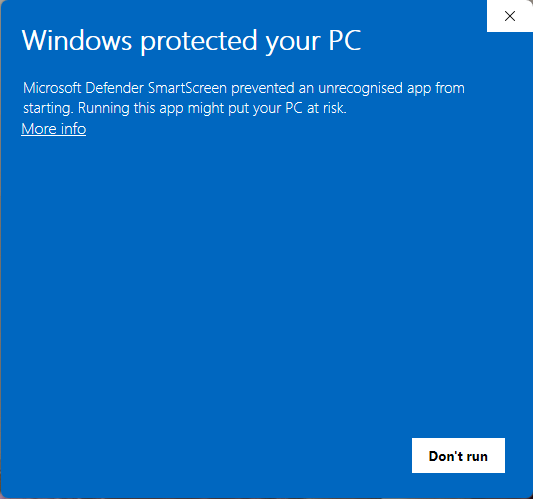
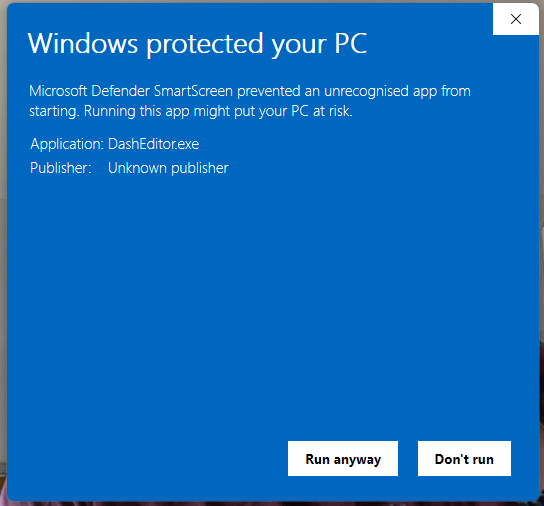
Verify you see Application: DashEditor.exe and Publisher: Unknown publisher — that's the expected text for the current unsigned release. The file hash matches what we publish on the download page.
After this first run, Windows remembers your decision for that specific file. You won't see the dialog again unless you download a new version.
3. Demo mode vs. full tier
On first launch without a license, DashEditor opens in demo mode:
- You can open any
.zconf2file and browse the layout - You can move elements around the canvas
- Save, Insert, Delete, Resize, New Page, and CSV playback are disabled — they require a license
A yellow banner at the bottom reads "Demo mode — Help → License for full features". Click Help → License to see your Machine ID and follow the purchase flow.
4. Going to full tier
- Buy license — €49/year
- Within a minute you'll get an email "Activate your DashEditor license" with a link
- Click the link, paste the Machine ID shown in Help → License
- A second email arrives with a file called license.lic attached
- Save
license.licinto%APPDATA%\Gulsten AS\DashEditor\(paste that path into File Explorer's address bar) - Restart DashEditor. The yellow demo banner should be gone. Help → License should read "Valid" with ~365 days remaining.
5. Troubleshooting
Stuck? Write support@speedfreaks.no. Include:
- Your Machine ID (12-character hex, from Help → License)
- The email you used to purchase (if applicable)
- A short description or screenshot of the problem